
Polygon and polyline objects
Polygons and polylines are shapes with several vertices. A polygon is a closed shape with a fill, and a polyline is an open shape made of lines only. In the toolbar, is the polygon and is the polyline.
Placing a polygon or polyline
There are two ways to place one.
| Action | Result |
|---|---|
| Drag on the field | A shape with the number of vertices set under "Vertices" (3 to 12) in the panel is placed at the size you drag. |
| Click on the field | Starts a mode that adds a vertex at each click. Keep clicking to add vertices, and click the first vertex to finish. "Done" at the top of the screen also finishes the shape. |
- When adding vertices by clicking, you choose the number of vertices. A polygon needs at least 3 and a polyline at least 2. Finishing with fewer cancels the shape.
- Press Esc to cancel while adding vertices.
- The number of vertices cannot be changed after the shape is added.
- Polygons and polylines are added on top of other objects. To put one behind the players, see Changing the stacking order.
To create shapes linked to players by clicking players in order, see Highlighting players with shapes.
Polygon and polyline settings
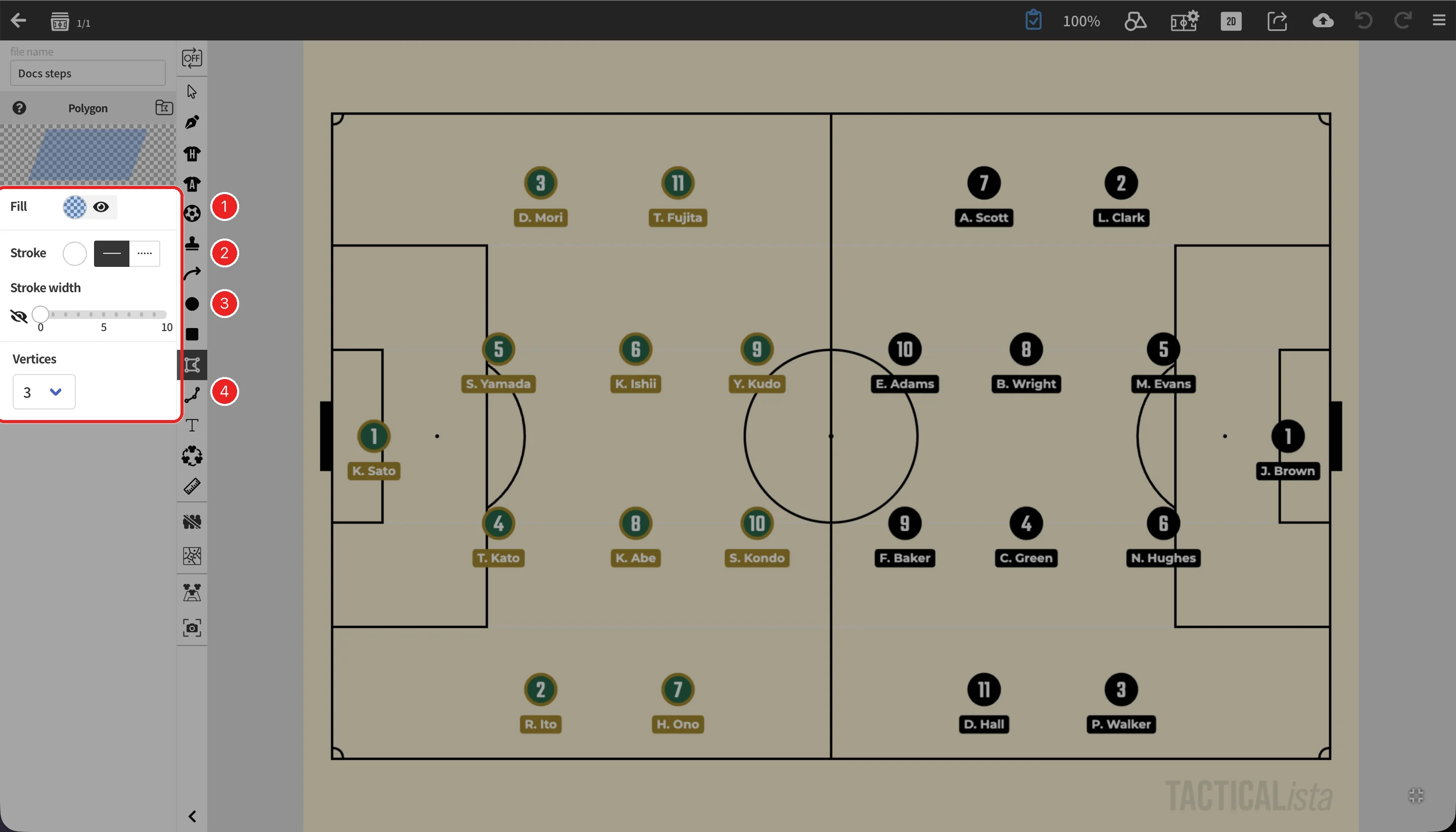
| No. | Item | Description |
|---|---|---|
| 1 | Fill | The fill color and whether it is shown. The color picker also sets the opacity (polygons only) |
| 2 | Stroke | The stroke color, and solid or dashed |
| 3 | Stroke width | Whether the stroke is shown, and its width (0 to 10) |
| 4 | Vertices | The number of vertices when placing by dragging (3 to 12) |
Select a placed shape to change its appearance in the panel. With several shapes selected, changes apply to all of them.
Changing the shape
In the 3D view, polygons and polylines are projected onto the field. → 3D Ball, Markers & Shapes