
Importing Players from a Photo
Detect player positions automatically from a match photo (a screenshot of a broadcast, a photo taken from the stands, and so on) and place the players on the field in one step.
All processing happens inside your browser. The image is never sent to a server.
Requirements
- Available on all plans.
- Available in the desktop interface. Touch operation is supported on tablets.
- Available on 11-a-side, futsal, junior (8-a-side), and custom "Field" boards. It is not available on blank custom boards, which have no lines.
- The player detection model (about 20MB) is downloaded the first time you run detection. After that, the model saved in your browser is used.
Steps
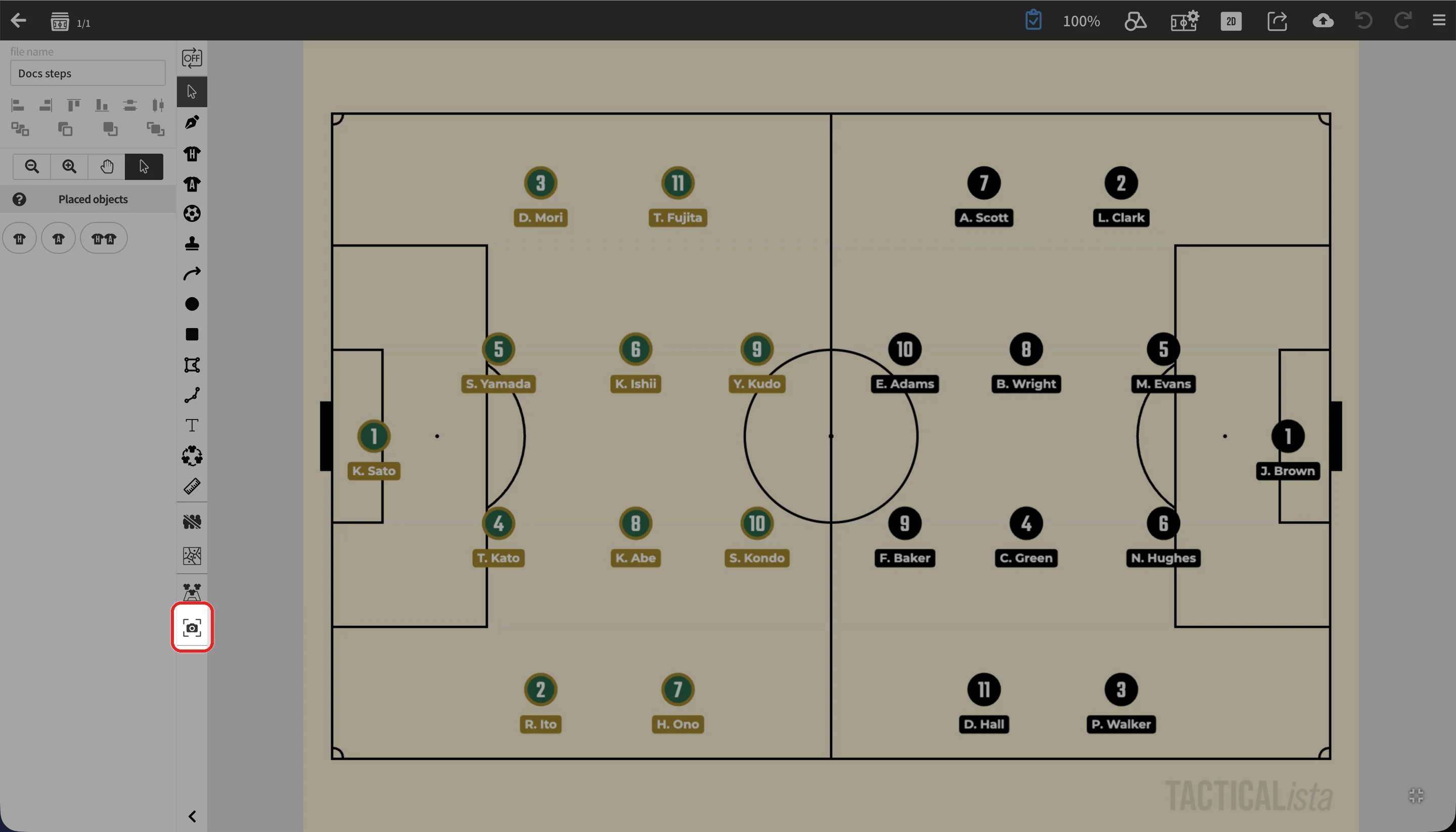
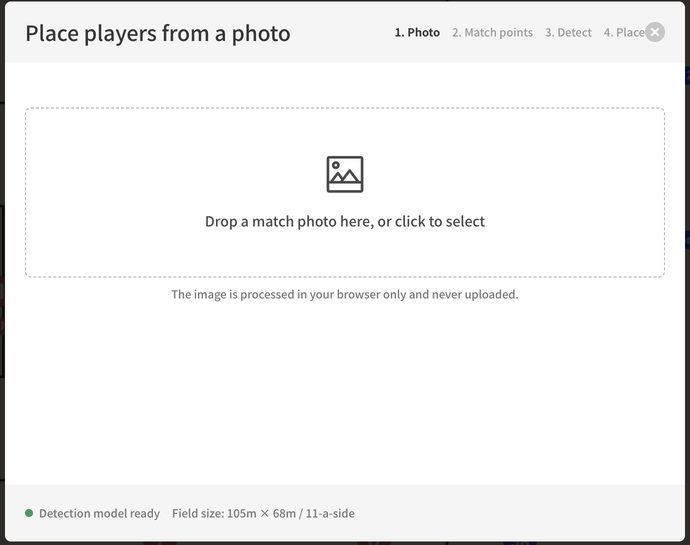
1. Photo
Drop a match photo, or click to select one. Even in wide shots where the players appear small, the image is split into tiles for detection, so many players can be found.
2. Calibration
Tell Tacticalista how the photo maps onto the field. Click a landmark on the field diagram on the left (corners, penalty area corners, penalty marks, the center circle, and so on), then click the matching position in the photo. Repeat this for at least four points.
- Once four or more points are set, the field lines are drawn over the photo. If they are off, add more points or drag the points to fine-tune them. The mean error is shown in pixels.
- Turn on "Snap to lines" to snap your clicks to the white lines and intersections detected in the photo.
- Press "Estimate remaining points" to add any unset landmarks that can be found in the photo automatically (shown in orange). Click a point to remove it.
- Click a point that is already set to clear just that pair. "Undo last pair" and "Clear all" are also available.
- You can place points in the gray margin outside the photo. Estimating the positions of corners or line intersections that are out of frame helps correct drift toward the near side.
- Zoom the photo with Cmd/Ctrl + wheel. While zoomed, scroll or hold the space key and drag to move. On tablets, pinch to zoom and swipe with two fingers to move.
3. Detection
Detection starts automatically when you reach this step. Detected players are outlined in the photo and sorted into home and away teams by kit color.
- Select "Home (left → right)", "Away (right → left)", or "Exclude" in the toolbar, then click an outline to reassign it. Clicking an outline with the same assignment again returns it to unassigned.
- "Auto-assign by color" redoes the classification, and "Swap home/away" swaps the two teams at once.
- To add a player that was not detected, click the position of their feet in the photo. The currently selected team is applied.
- "Re-detect" runs detection again. Manually added players are kept.
- People detected outside the pitch (spectators, the bench, and so on) are excluded automatically. Players left unassigned are not placed.
- If the detection model fails to load, press "Retry" at the bottom of the screen to load it again.
4. Placement
A preview of the placement is shown on a mini field. Check it and press "Place" to add the players to the field. Jersey numbers are assigned sequentially from 1 for each team, and names are left empty.
If players from the same team are already on the field, the nearest existing players are moved first, and new players are added only for the remainder.
Notes
- Detection accuracy depends on the resolution of the photo and the size of the players. Add any missed players manually.
- On surfaces other than grass, such as an indoor futsal court, white line detection and player detection may be less accurate.
- Goalkeepers and referees may remain unassigned because their kit colors differ from both teams. Assign them manually as needed.