
Camera Animation
On animation boards, you can record a camera position for each frame to create animations in which the viewpoint moves during playback. "2D" moves the zoom and pan of the 2D board, and "3D" moves the camera of the 3D view.
Camera animation modes
Switch between OFF, 2D, and 3D under "Camera animation" in the header of the animation controller. 2D and 3D cannot be used at the same time.
| Mode | What moves |
|---|---|
| OFF | The camera does not move. Recorded camera keys are kept. |
| 2D | Records the zoom and pan state of the 2D board for each frame. |
| 3D | Records the camera position of the 3D view for each frame. The 3D view must be shown. |
On mobile, turn 3D mode on or off with "3D Camera Key" in the menu of the 3D view.
Recording camera keys
When 2D or 3D is selected, a camera key row appears under the frame list.
- Select the frame where you want to record a key.
- Move the camera. In 2D mode, zoom and pan the 2D board; in 3D mode, move the camera of the 3D view. → Zoom and pan / 3D Camera & Viewpoint
- Turn on the checkbox under the frame to record the current camera position as that frame's camera key.
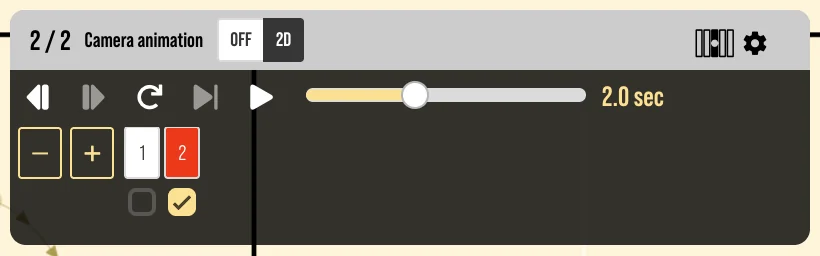
- Turn the checkbox off to delete the camera key of that frame.
- If you move the camera on a frame that already has a key, the frame shows that the key and the current position differ. Press to update the key to the current position, or the cancel button to return to the recorded position.
- In 3D mode, the player-view camera can also be recorded as a key. During playback, the viewpoint follows that player's movement.
Playback
- Between frames with keys, the camera position is interpolated linearly for smooth movement.
- On frames before the first key, the camera stays at the first key. On frames after the last key, it stays at the last key.
- After playback, the camera remains at its last position.
TIP
You do not need to record a key on every frame. Record keys only on the first and last frames and the frames between them are interpolated automatically. Recording keys on frames in between makes the camera pass through those positions.
Exporting
Camera animation is applied to both Exporting Animation (2D video) and Exporting the 3D View (3D video).