
3D Player
In the 3D view, the players placed on the 2D board are shown as human-shaped 3D models or as pieces. Colors, names, numbers, direction, and the view angle follow the 2D settings.
Switching the display
Switch the display in the header of the 3D view (on mobile, in the menu). → 3D view display settings
| Setting | Description |
|---|---|
| Piece | Shows magnet-style discs that reproduce the 2D player's pattern, number, name, arrow, arm, and dominant foot. |
| Model | Shows rigged human-shaped 3D models. Poses and heights can be set. |
| Wire only | In model mode, shows wireframes only. |
| Name / No. | Shows or hides names and jersey numbers. |
| Billboard / Print | How names are shown in piece mode. → Piece names and numbers |
The piece / model choice is saved per scene on static boards and per file on animation boards.
Piece names and numbers
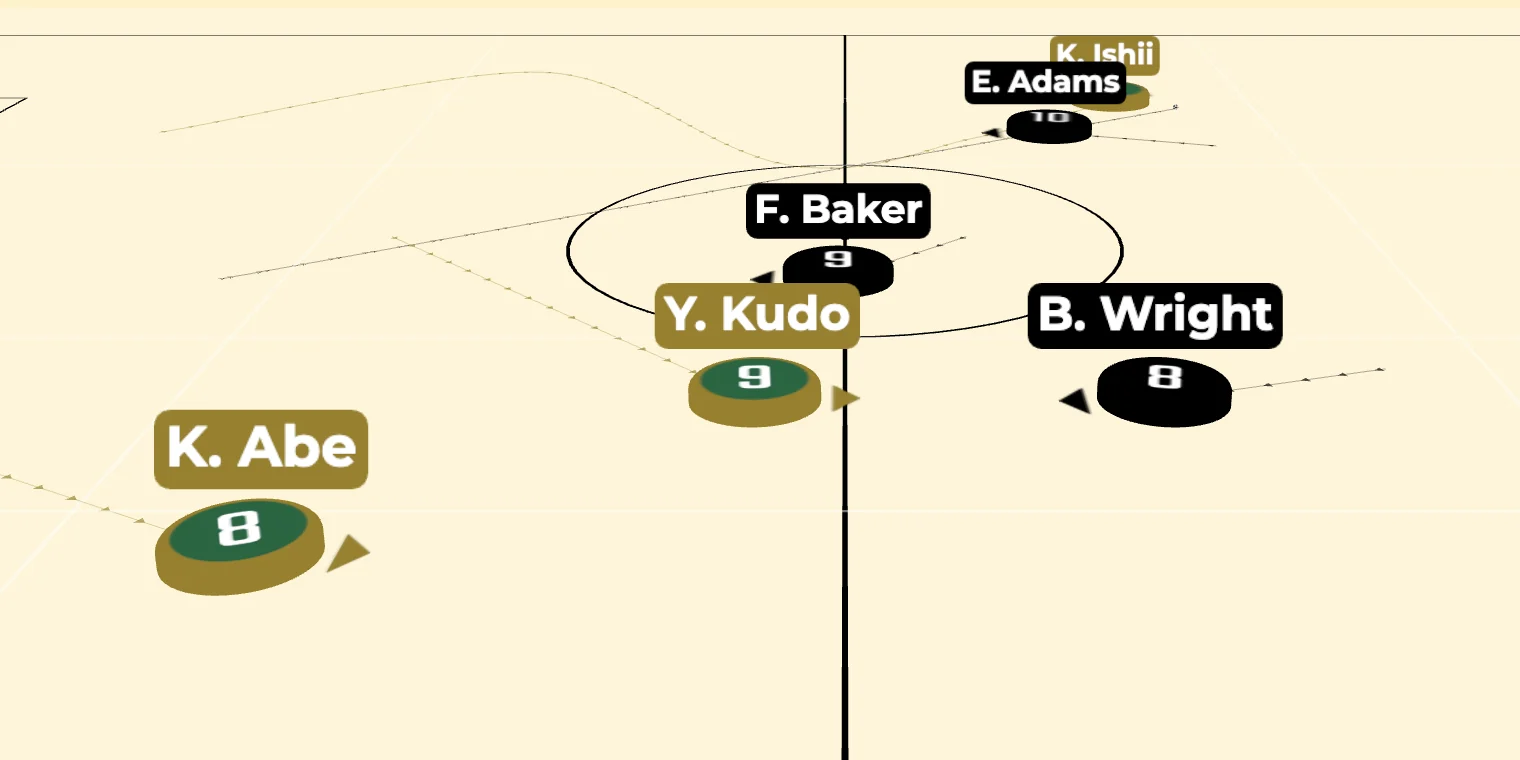
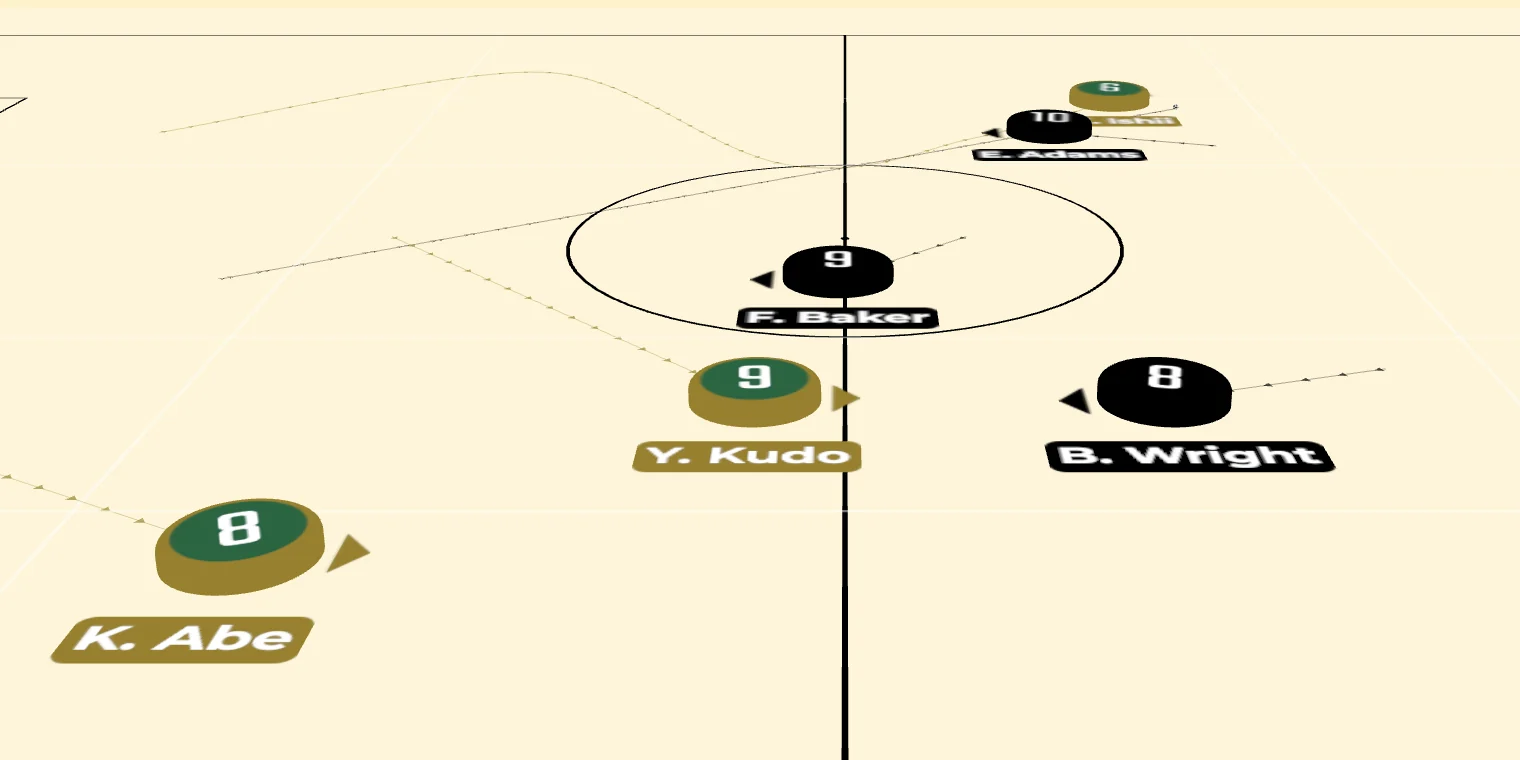
- In piece mode with "Name" on, choose how names are shown with "Billboard / Print" in the header. The default is Print.
- Billboard: the name plate stands just above the piece, parallel to the screen. From a side view it stands upright; as the camera moves overhead it tilts back, and from directly above it lies flat beyond the piece, so it never covers the piece.
- Print: names look as if printed on the ground. Their position (top, bottom, left, right) and orientation match the 2D board, and both home and away names read upright. They follow when you switch the field between horizontal and vertical.
- Name color, background, bold, and size follow the 2D board settings.
- Piece numbers always face the camera so they read upright from any angle. The piece's direction is shown by its arrow, arms, dominant foot, and pattern.
- The name style is saved per scene on static boards and per file on animation boards. It is kept when you switch to model mode and used again when you switch back to pieces.
Names in model mode
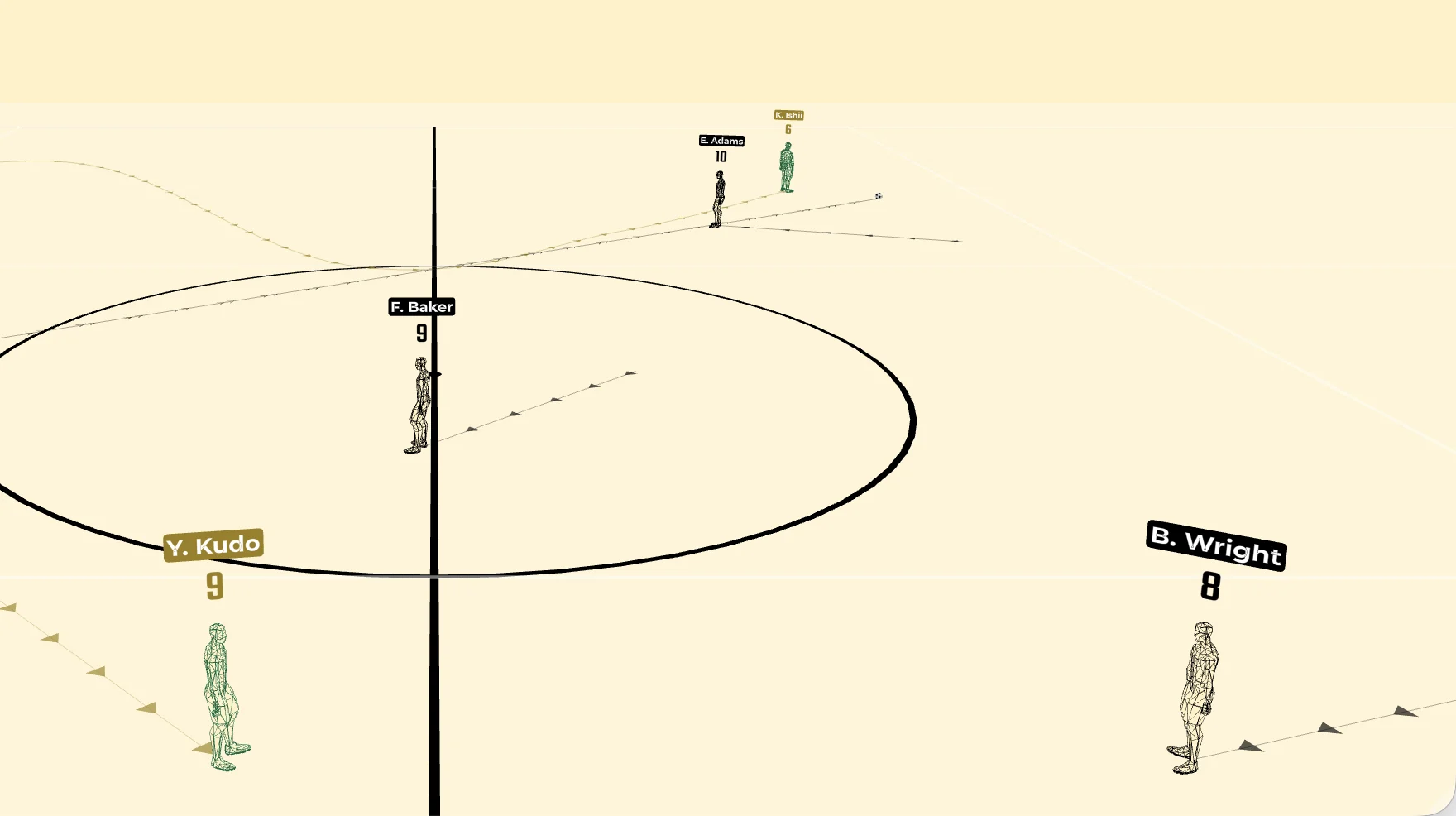
- For players whose name background is on in 2D, a rounded plate in the background color appears behind the name, and the text uses the name color. If no background color is set, the body's outline color is used.
- The number uses the background color when the background is on, and the name color when it is off.
- Bold is applied as well. The name size is not.
Poses
Select a player and choose a pose from "3D Pose" in the player settings panel.
- Default
- Defence
- Goalkeeper
- Left foot forward / Right foot forward
- Run
- Sliding (left foot / right foot)
- Kneeling
- Jog (forward / backwards)
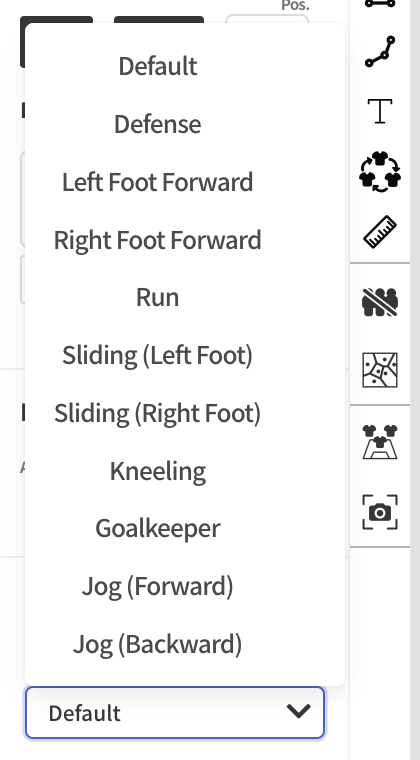
You can select several players and set the pose for all of them at once. Poses apply in model mode.
Height
Set the height with the "3D Height" slider in the player settings panel.
- 11-a-side and futsal: 120 to 210cm (default 175cm)
- Junior (8-a-side) and custom: 100 to 210cm (default 150cm for junior, and the "Default height" set when creating a custom board)
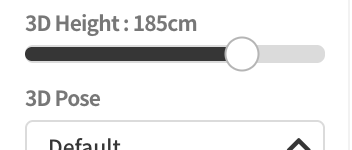
With several players selected, the same height is applied to all of them.
"Individual player settings" lists the players on the board so you can edit names, numbers, feet, and heights together and apply them at once with "Apply".
Players placed from Importing Match Data or the Team Manager use their registered heights.
Moving and turning players in the 3D view
Turn on "MOVE" in the header of the 3D view, or hold Alt while dragging, to move players and the ball directly in the 3D view. On mobile, turn on .
- Drag a player or the ball to move it.
- Selecting a player shows a rotation handle at their feet. Drag the handle to change the player's direction.
- Moves and rotations made in 3D are reflected on the 2D board and can be undone.
- Moving is not available while the player-view camera is active.
Selection and view angle
- Players selected on the 2D board show a ring at their feet in the 3D view. The ring uses the selection color.
- Players whose view angle is shown in 2D also show the view angle as a cone in the 3D view. → Player
Related pages
- 3D Camera & Viewpoint: the player-view camera
- Player