
Minimal Mode
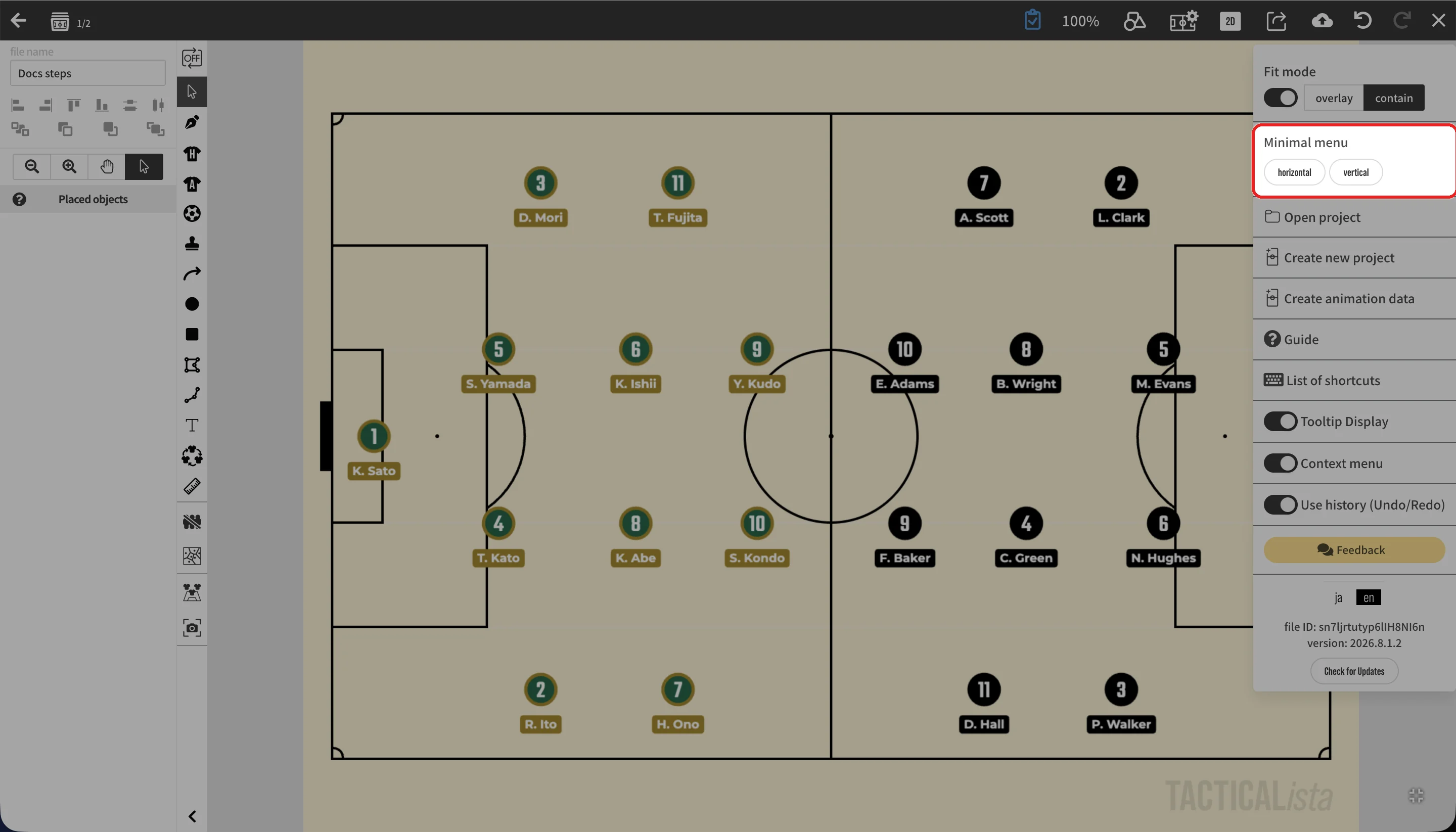
Minimal mode hides the menus and panels of the desktop version and leaves only a small set of tools, so you can focus on the field. It suits explanations in meetings and commentary while drawing with the pen.
Requirements
- Available on static boards in the desktop version. It is not available on animation boards.
- It cannot be started while the 3D view is shown. Set the display mode back to "Normal" first.
Starting minimal mode
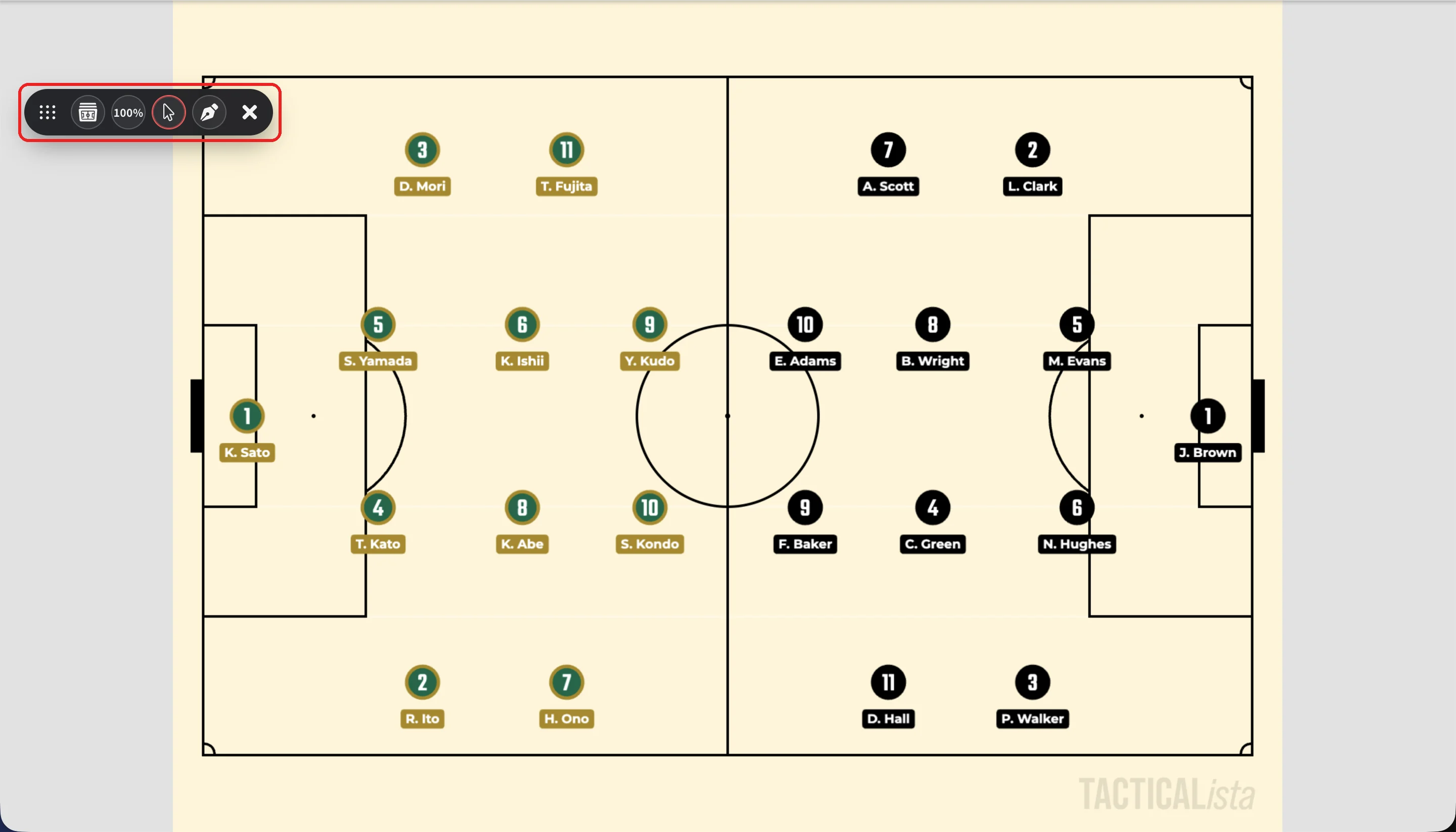
Toolbar
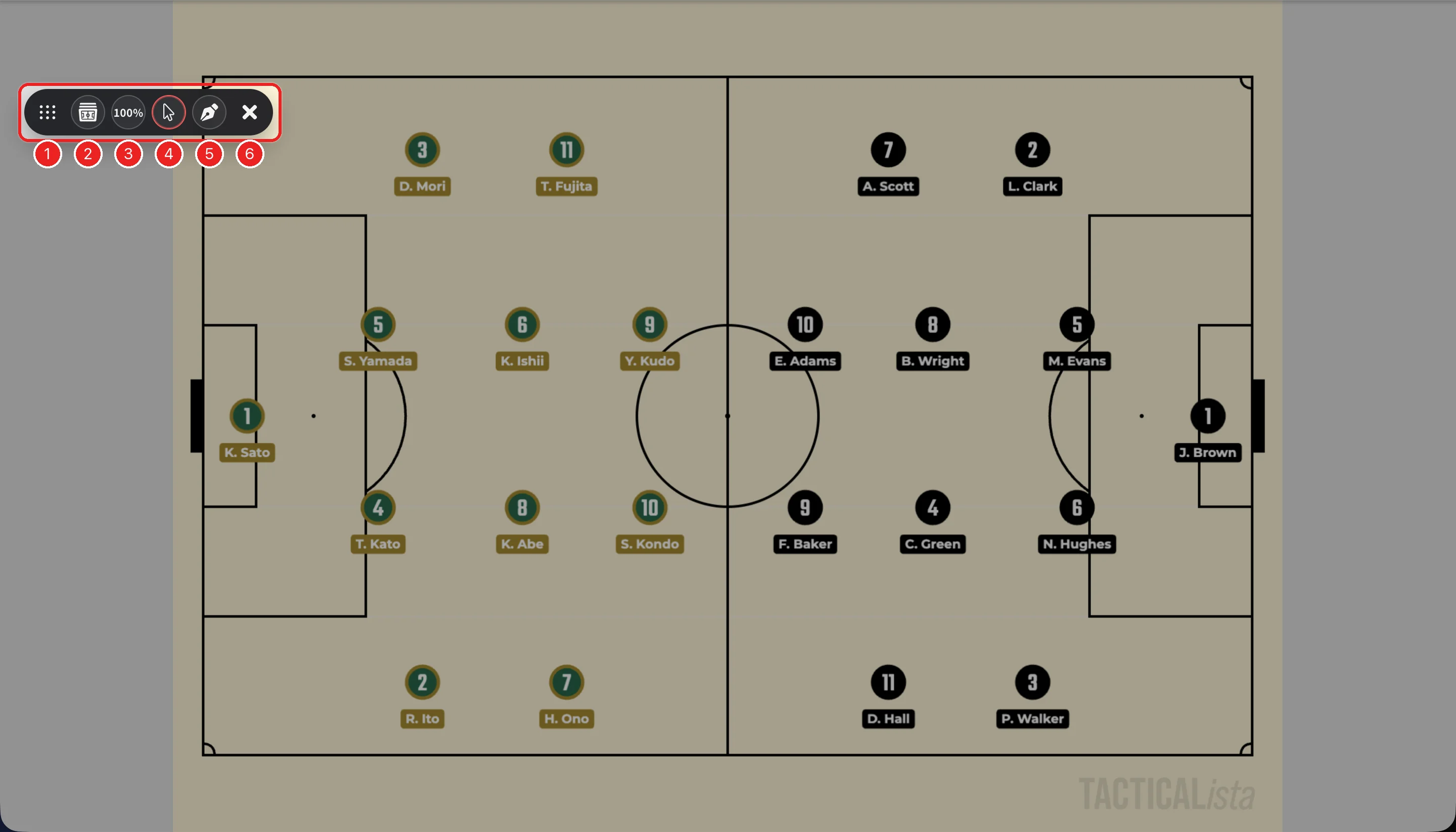
| No. | Tool | Description |
|---|---|---|
| 1 | Drag to move the toolbar anywhere you like. | |
| 2 | Switches scenes. → Scenes | |
| 3 | Zoom level (such as 100%) | Adjusts, resets, and locks the zoom. → Zoom and pan |
| 4 | Select tool | Selects and moves objects. |
| 5 | Pen | Draws by hand. While the pen is selected, a button for choosing the color and width appears next to it. Press the pen again to switch between "Pen only" and "Pen & select tool". |
| - | Deletes all handwritten lines. Shown only when there are handwritten lines. | |
| 6 | Exits minimal mode. Shown while the select tool is active. |
Adding objects other than pen strokes and the settings panels are not available. Finish placing what you need before entering minimal mode.
Exiting minimal mode
Press in the toolbar, then press "Close", to return to the display you had before. Changes made in minimal mode are kept. To keep them permanently, return to the normal screen and save with . 
Related pages
- Field Settings: window fit mode
- Handwritten