
Project List & Tags
The project list shown after logging in is where you create and manage boards and organize them with tags.
Layout of the list
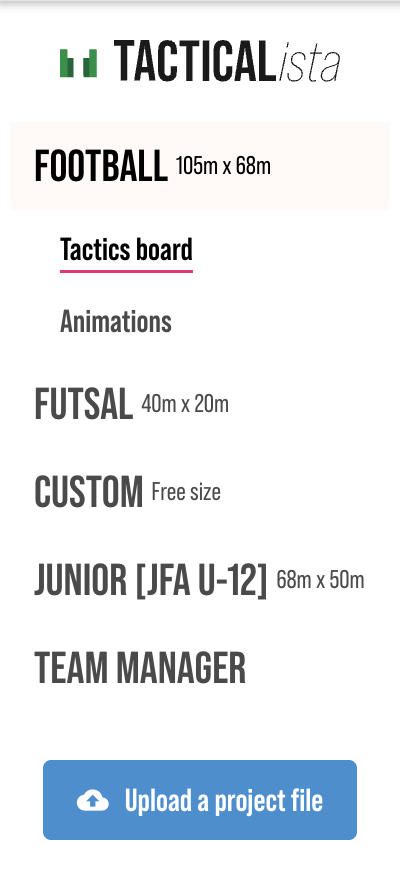
Choose a type in the sidebar on the left to show the matching projects on the right. 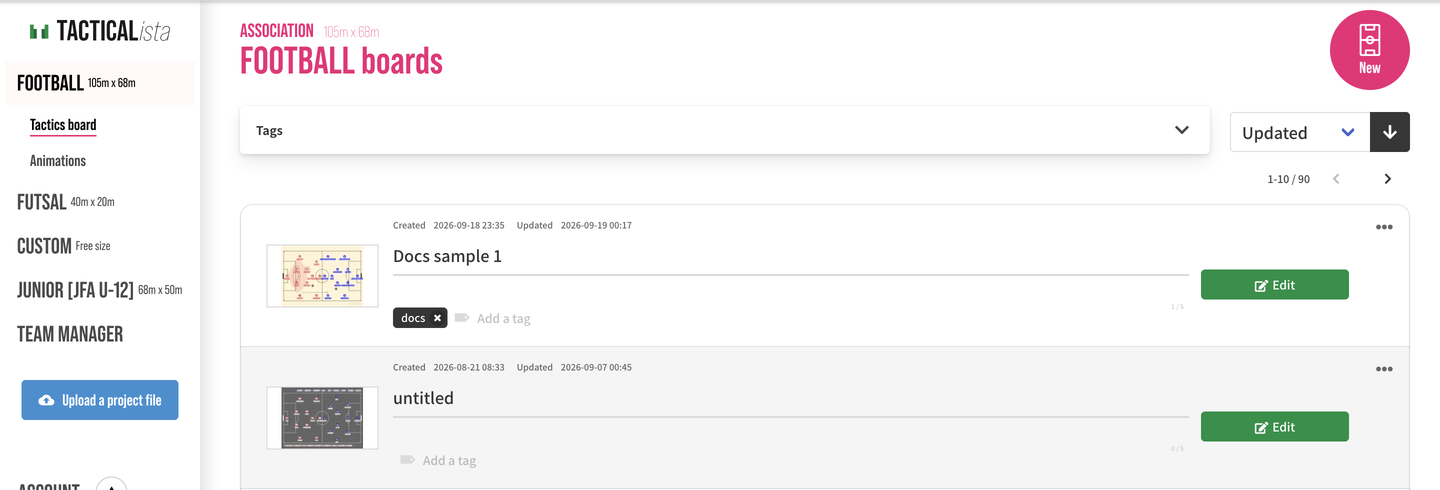
| Sidebar | Description |
|---|---|
| FOOTBALL (105m × 68m) | 11-a-side boards |
| FUTSAL (40m × 20m) | Futsal boards |
| CUSTOM | Custom field boards |
| JUNIOR [JFA U-12] (68m × 50m) | 8-a-side boards |
| TEAM MANAGER | Team Manager |
 |
Each type has a "Projects" list (static boards) and an "Animations" list.
Creating a project
Press "New" in a list to create a new project of that type and open the editor. For custom boards, the field settings screen opens before creation.
"Projects you can create this month" is shown at the top of the list. On the Starter plan you can create up to 3 projects per month.
Columns
| Column | Description |
|---|---|
| Thumbnail | On the Basic plan, a thumbnail of the scene at the time of saving (the current frame for animations) is shown. Projects that have never been saved show a placeholder. |
| Created / Updated | Click the header to sort. |
| Edit period | On the Starter plan, projects can be edited for one week after creation. After that they become view only. |
| NAME | The project name (up to 30 characters). Click it to edit in place. |
| Tags | The tags attached to the project. → Tags |
| Edit / View | Opens the editor. |
Each row's menu offers "Duplicate" (Basic plan) and "Delete". Deleted projects cannot be restored.
The list is paginated 10 projects per page. On the Starter plan, only the 3 most recent projects are available. 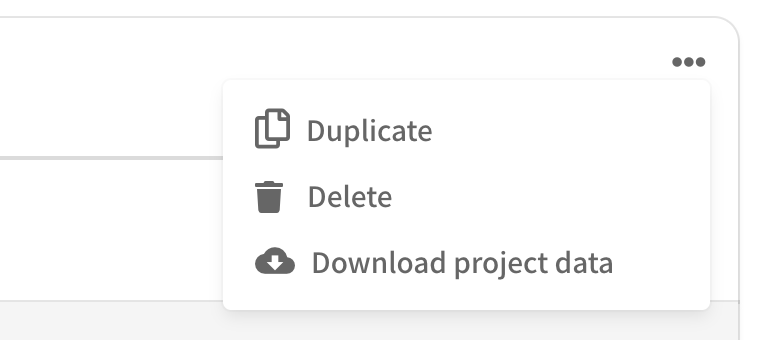
Tags
Attach tags to projects to organize and search them.
- Up to 5 tags per project, and up to 25 characters per tag. Type into the tag field in a row to add one.
- Up to 200 different tags per account. Once the limit is reached, no new tags can be added until you delete unused ones.
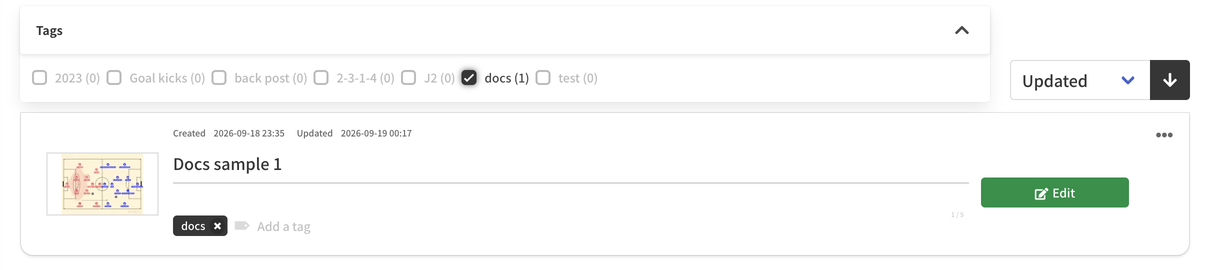
- Filter the list with the tag list at the top. Up to 30 tags can be selected at once. Clicking a tag in a row also filters by that tag.
- When several tags are selected, only projects that have all of them are shown.
Loading a project
When you open a project, the progress of loading fonts, appearance settings, data, and scenes is shown in order. For projects with many scenes, progress is shown as "n / total scenes".
Opening another project from the editor
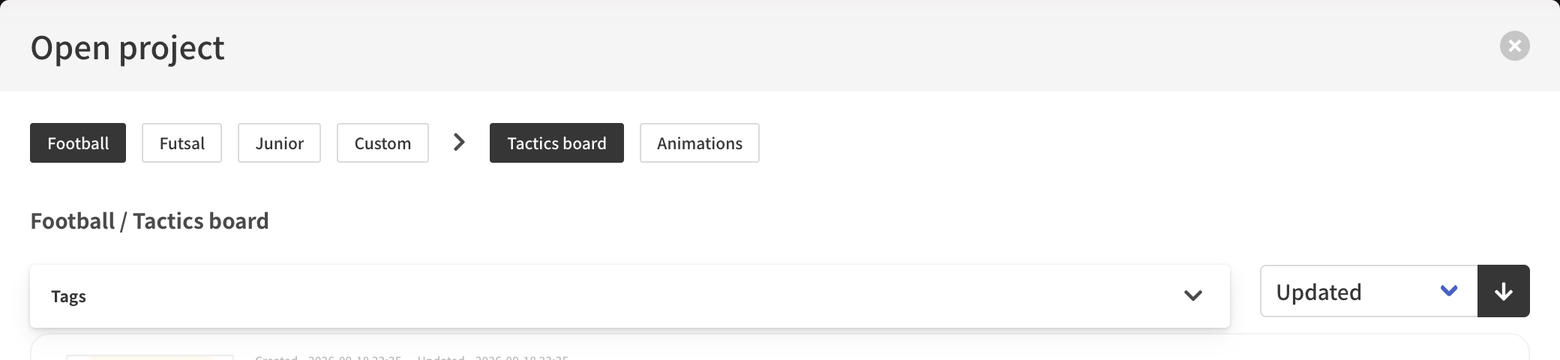
In the editor, "Open project" in the menu at the right of the header lets you move to another project without returning to the list. Tag filtering is available here too.
The current project is saved automatically before moving. If saving fails, you stay on the current project. The project being edited is labeled "Editing".
Press at the top left of the editor to choose "Save and return to list" or "Return to list without saving". 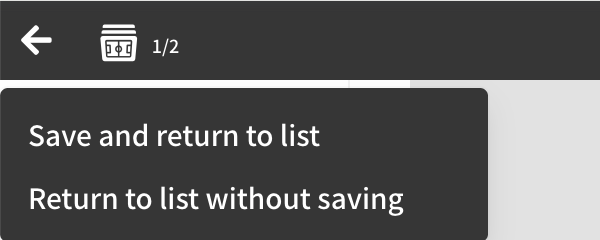
Uploading project data
On the Basic plan, the button at the bottom of the sidebar uploads exported project data (.tact) and adds it to the list.