
3D Camera & Viewpoint
The camera of the 3D view can be rotated, moved, and zoomed freely. You can also jump to preset positions or look through a player's eyes.
Camera controls
| Action | Mouse / trackpad | Touch |
|---|---|---|
| Rotate | Left drag | One-finger drag |
| Move forward / back (zoom) | Wheel | Two-finger pinch |
| Pan | Right drag, or two-finger swipe on a trackpad | Two-finger swipe |
The camera position is kept during the session. On mobile, it is also kept when you return to 2D and open the 3D view again.
Camera position panel
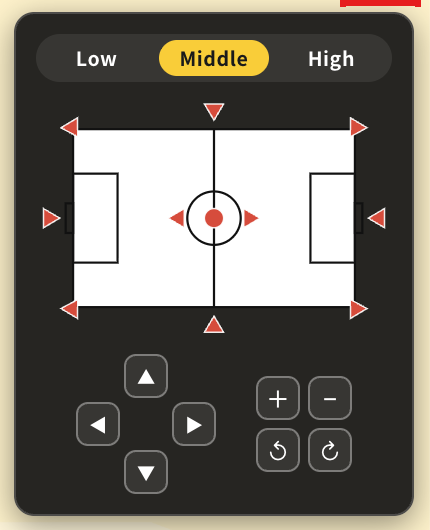
Press in the header of the 3D view (inside the 3D view on mobile) to open the camera position panel.
- Height: Choose Low, Middle, or High for the camera height.
- Field diagram buttons: Press a button on the diagram to move the camera to that position.
- The circle in the center: overhead view from directly above
- The four corners: view from the corner toward the penalty area
- Behind the goals and the middle of the touchlines: view toward the center of the field
- Left and right of the center circle: look down on each half of the pitch
- Control buttons: ▲▼◀▶ move the camera forward, back, left, and right; the rotate buttons turn the camera left and right; + / − zoom. Hold a button to keep moving.
Player-view camera
You can look at the field from a player's point of view.
Desktop
While the 3D view is shown, the following buttons appear in the header of the 2D board.
- / : Shows or hides the position of the 3D camera on the 2D board.
- (Player View): Switches to the player-view camera. Select a player on the 2D board first, then press it to view from that player. If no player is selected, the view waits and follows the next player you click. Press it again to return to the normal camera.
- / (Lock Player): In player view, locks the camera to the current player.

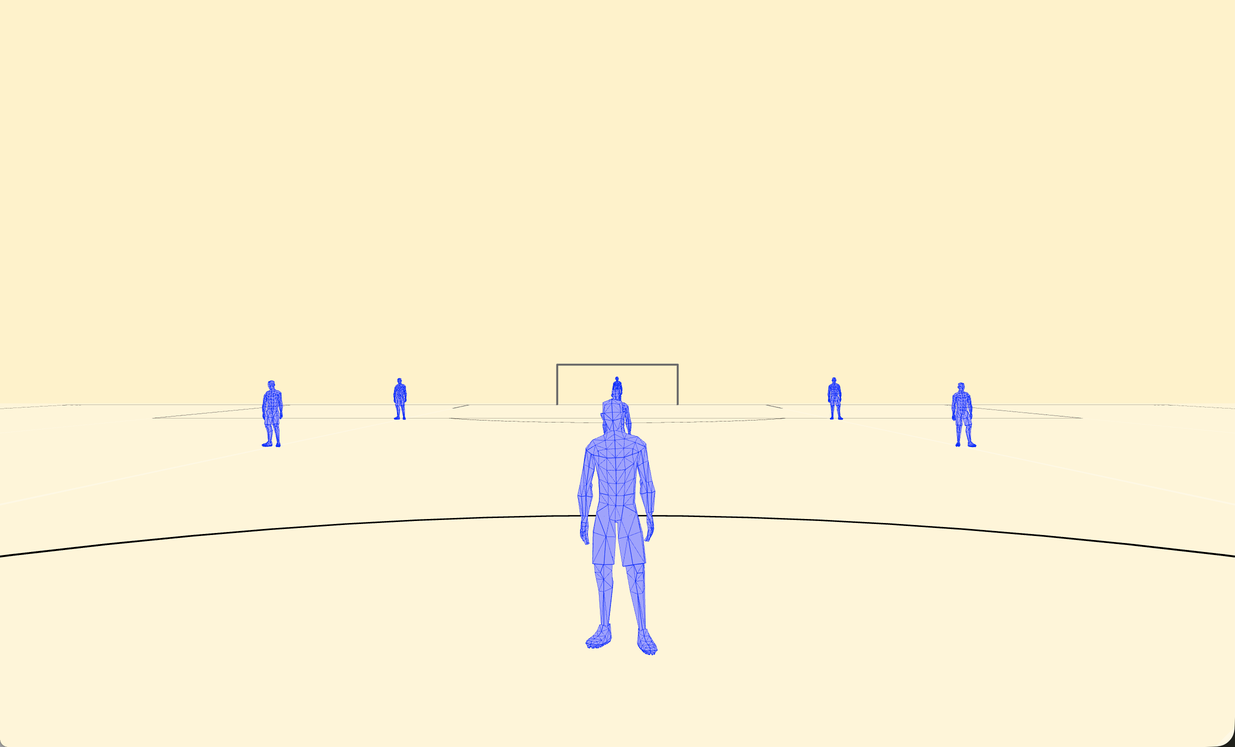
In player view, drag the 3D view to change the direction of the gaze. Turning left or right also changes the player's direction on the 2D board.
Mobile
Press in the 3D view to list the players on the board. Choose a player to view from their eyes, and press "Clear" to return to the normal camera.
Use in animation
During animation playback, the player-view camera follows the movement of the chosen player. With Camera Animation set to 3D, the player-view state can be recorded as the camera key of a frame.