
Autosave & Restore
Your edits are backed up automatically on your device, even before you save to the cloud. If the browser crashes or you close a project without saving, you can restore it from the backup the next time you open the project.
How autosave works
- Every time you edit, the current state is backed up automatically inside your device (browser).
- Backups are stored encrypted, so the contents cannot be read by looking at the data on the device directly.
- Backups are stored per device and browser. They are not carried over to other devices.
- Saving to the cloud is still done with . The automatic backup does not replace saving to the cloud.
WARNING
Saving to the cloud requires a network connection. When you are offline, "Could not save because you are offline" is shown. Check your connection and save again.
Restoring from a backup
When you open a project and the device holds a backup that is newer than the data saved in the cloud, the "Unsaved changes found" screen appears. Compare the save times of the device and the cloud, and choose which one to open.
| Option | What happens |
|---|---|
| Restore from device | Loads the backup on the device. To keep the restored content in the cloud, save it again. |
| Load from server | Loads the data saved in the cloud. The backup on the device is discarded. |
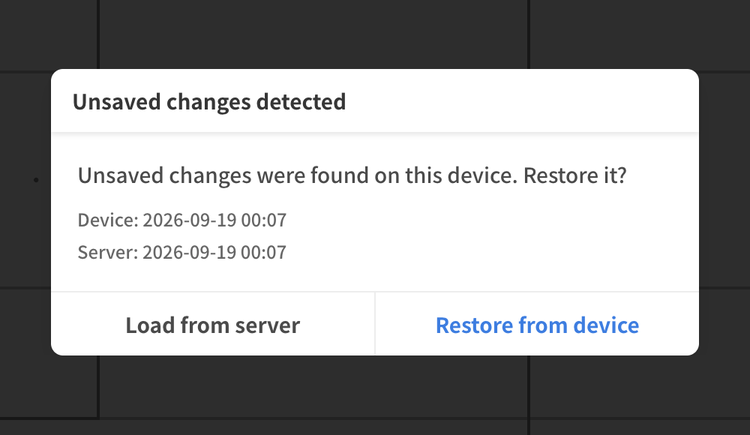 |
This screen cannot be closed until you choose one of the options.
History (Undo / Redo) setting
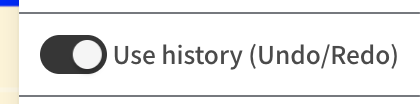
The undo / redo history can be turned on or off with "Use history (Undo/Redo)" in the menu at the right of the header on desktop, or in the toolbar settings at the bottom of the screen on mobile.
- Turning it off discards the current undo history and hides the undo and redo buttons. The app runs lighter without the history.
- Automatic backups continue even when history is off.
- This setting is saved per device.
Deleting backup data
Backups on the device can be deleted from "Delete local data" on the settings page. Projects saved in the cloud are not deleted. Use this after working on a shared device, for example. 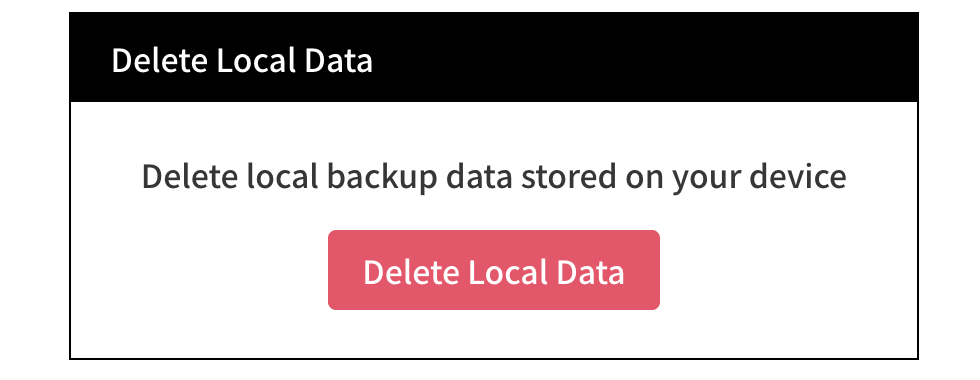
Save size limit
There is a limit to the amount of data that can be saved in one project. On the Basic plan, the limits on scenes, frames, and objects are determined by this file size.
- When the size approaches 90% of the limit while editing, a warning is shown at the top of the screen.
- Once the limit is exceeded, the project can no longer be saved, and a limit message is shown when adding scenes, frames, or objects. Delete unneeded scenes or handwritten lines, or split the project.